Linux on Windows: 6 Best Ways to Run It [2026 Guide]
If you're learning cybersecurity on a Windows laptop, you hit the same wall most of us hit: nearly every tutorial, every lab, every write-up assumes you're already sitting in front of Linux. Kali, Nmap piped through grep, a quick Bash loop — all Linux-first. So you're left wondering how to run Linux on Windows without wiping the machine you actually use for everything else.
And there's a newer reason to care about this than there used to be. More and more of us are running AI coding agents — Claude Code, Codex, the rest — directly on Windows, and the moment you do, you hit it: your agent is stuck in PowerShell, cut off from the Unix toolset that half of all tooling and tutorials quietly assume. Getting Linux (or at least the Linux tools) onto your Windows machine is now less about "learning Linux" and more about giving your AI agents the environment they actually expect to work in. It's the same wall, for a new reason — and it's exactly the kind of setup that underpins AI-driven engineering, which is how I run most of my own work.
Good news: you've got six real ways to do it, and they're not equal. Some are perfect for daily CLI work, one is the right call for a full pentest lab, and one is brand-new from Microsoft and gets misunderstood constantly. We'll go through each option, what it's genuinely good at, where it falls down, and which one you should actually pick for lab work. Let's get into it.
TL;DR — if you've only got 30 seconds
WSL2 — fast, light, one command to install. Your daily command-line driver.
A virtual machine (free VMware or VirtualBox) — your real, isolated lab. Snapshots, and Wi-Fi attacks via a USB adapter. Build this first.
Docker — disposable targets and single tools.
Dual-boot — only when you need bare-metal GPU cracking or low-level hardware.
Git Bash / CoreUtils — a Linux feel in the Windows shell, not real Linux.
How to run Linux on Windows (the 6 options at a glance)
Before we go deep, here's the whole map — six ways to run Linux on Windows, and how they stack up on the things that actually matter for cyber lab work:
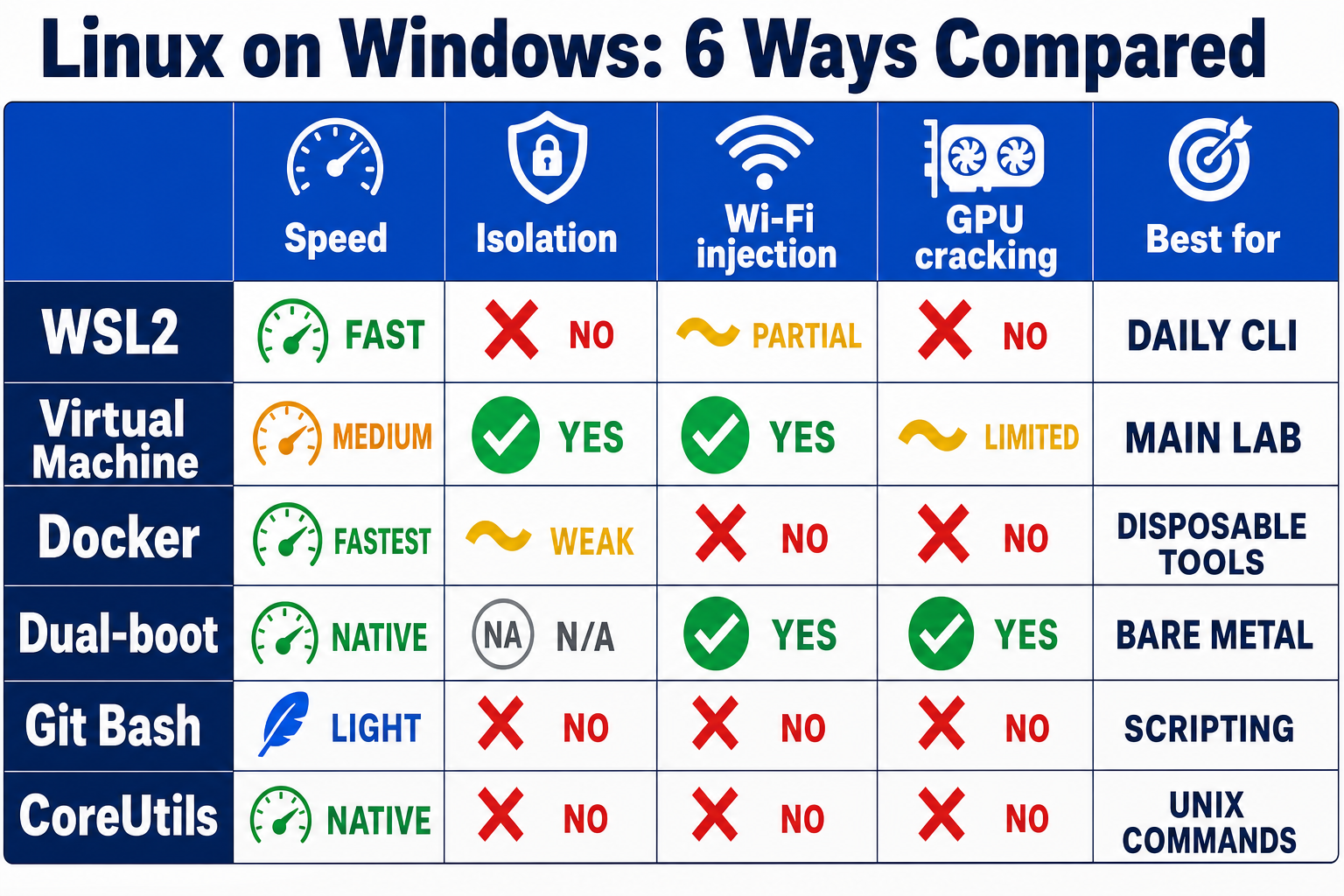
The short version: WSL2 for fast everyday command-line work, a virtual machine for a proper isolated lab (and, with a USB Wi-Fi adapter passed through, for wireless attacks too), Docker for disposable single-tool jobs, dual-boot only when you need bare-metal GPU or firmware access, Git Bash and friends for a Linux feel without the real thing, and Microsoft CoreUtils for native Unix commands in your Windows shell — which, as we'll see, is not the same as running Linux at all. Let's take them one at a time.
Option 1 of 6
WSL2: the fast daily driver (and how to run Kali)
The Windows Subsystem for Linux is Microsoft's own answer to this problem, and for day-to-day command-line work it's the one I reach for most. WSL2 runs a real Linux kernel — Microsoft ships and maintains it, serviced through Windows updates — inside a lightweight virtual machine that boots in about a second. That's the important detail: WSL1 was a translation layer faking Linux system calls, and it's the exception now, not the default. WSL2 is the real kernel, so tools behave the way they do on actual Linux.
Installing it is genuinely one command. Open PowerShell or Command Prompt as administrator and run:
wsl --install
That enables the feature, sets WSL2 as the default, and pulls down Ubuntu. Reboot, pick a username and password, and you're in a Linux shell. If you want a different distro, wsl --install -d <name> does it. For cybersecurity specifically, the one you want is Kali:
wsl --install -d kali-linux
Out of the box that gives you a minimal Kali — enough for the CLI toolchain, but not the full arsenal. To add the tools, install Kali's recommended arsenal metapackage:
sudo apt update && sudo apt install -y kali-linux-large
kali-linux-large is the sensible default set. There's also kali-linux-everything, but that's the exhaustive ~35GB install of every tool in the repo — Kali's own docs steer you away from it unless you have a specific reason, so most people should skip it. And Kali on WSL has a genuinely clever feature called Win-KeX (the Windows Kali Desktop Experience), which gives you a full Kali desktop, including a "Seamless" mode where Linux windows sit right alongside your Windows apps:
sudo apt install -y kali-win-kex
For a pentest-then-write-the-report workflow, being able to copy findings straight from a Kali tool into a Windows document is a real quality-of-life win. Give it 8GB of RAM or more if you're running the desktop.
Modern WSL2 also handles the things that used to be dealbreakers: GUI Linux apps work through WSLg with no X-server faff, and systemd is supported — though on some distros, Kali included, you enable it yourself by adding systemd=true under a [boot] section in /etc/wsl.conf and restarting WSL. Once that's on, services that expect systemd will start.
Where it falls down
WSL2 runs inside a managed utility VM, and that VM doesn't get direct access to your real hardware. So the wireless work a lot of pentesting depends on — monitor mode, packet injection with your Wi-Fi adapter — doesn't work out of the box. You can attach a USB Wi-Fi adapter to WSL2 using Microsoft's usbipd-win (USB/IP) tool, but monitor mode and injection often still need a custom-built kernel, so treat it as an experimental route rather than a reliable one. For the 80% of learning that's scanning, scripting, and exploiting boxes on TryHackMe or Hack The Box, WSL2 is excellent. For dependable wireless attacks, a VM with a passed-through adapter is the cleaner answer — which is the next option.


Option 2 of 6
Virtual machines: the best all-round lab (VirtualBox & free VMware)
If WSL2 is the fast daily driver, a virtual machine is the proper workshop — and for most people learning cyber, it's the one I'd actually recommend building first. A VM runs a complete guest operating system, fully isolated, with its own virtual hardware you control. A few features make it the natural home for a security lab:
Snapshots. Take a clean snapshot of your Kali VM, go and test an exploit or examine a suspicious sample, then roll straight back to the clean state in seconds. Nothing else on this list does that as cleanly.
Isolation. Wire several VMs into their own private network (an attacker box, a couple of vulnerable targets) with no risk to your real machine or your home network.
USB passthrough for Wi-Fi. Hand a USB Wi-Fi adapter directly to the VM and get proper monitor mode and packet injection — the wireless work WSL2 struggles with. (You'll want an adapter with a chipset known to support monitor mode/injection; not every dongle does.) That's why a VM, not dual-boot, is the usual home for Wi-Fi attacks.
You've got three main options, and the pricing landscape here changed in a way a lot of people missed:
VirtualBox. Free, open-source, runs everywhere, huge amount of tutorials aimed at it. The standard starting point.
VMware Workstation Pro. This used to be paid, but Broadcom made it free for everyone, including commercial use, back in November 2024, and it's still free. No license key — you just need a free Broadcom account to download it. If you found older guides telling you to pay for it, that advice is out of date.
Hyper-V. Built into Windows Pro and Enterprise (it's not available on Home editions). Solid, but it's the fiddliest of the three to share nicely with other tools.
The practical starting move for a beginner: download a prebuilt Kali or Parrot VM image from the official site, import it into VirtualBox or VMware, and you skip the entire OS-installation step. OffSec (Offensive Security) publishes ready-made Kali images specifically for this.
Setup warning — running a VM and WSL2/Docker together
This is the single most common reason a beginner's Windows lab breaks, and the stack I recommend below uses both. Turning on WSL2, Docker Desktop, or Hyper-V makes Windows itself a hypervisor, which can clash with VirtualBox and VMware. Modern VirtualBox 7.x and VMware Workstation can run on the Windows Hypervisor Platform and coexist with WSL2/Hyper-V, so on an up-to-date setup it usually just works — though VM performance can vary. If your VMs won't launch or crawl, that's the cause: either keep everything current, or disable Hyper-V (bcdedit /set hypervisorlaunchtype off, turn off Core Isolation → Memory Integrity, and reboot) — just know that turning those off lowers Windows' own security protections, so it's a reversible last resort, not a default. And even where coexistence "works," VirtualBox on the Windows Hypervisor Platform can be noticeably slower than with Hyper-V fully off, sometimes significantly.
Where it falls down: a VM is heavier than WSL2 — more RAM, more CPU, slower to boot, and you'll pay some performance overhead versus bare metal (modest for most CPU and scripting work, larger for graphics- or disk-heavy tasks). For most lab work that's a fine trade. The one thing a VM genuinely can't do well is give a demanding workload full, direct GPU access — and that's what pushes serious password cracking toward dual-boot later.

Option 3 of 6
Docker: disposable Linux for single tools and targets
Docker sits in an interesting spot between WSL2 and a full VM. Instead of a whole operating system, a container packages up one thing — a tool, a service, a vulnerable app — and runs it sharing the Linux kernel underneath (on Windows, Docker Desktop uses the WSL2 backend to provide that kernel). The result is the quickest thing on this list to spin up: a container starts in a moment and disappears just as fast.
For cyber learning, the sweet spot is disposable, reproducible environments. Want to practise against a deliberately vulnerable web app? docker run a DVWA container and you've got a target in seconds; delete it when you're done and there's nothing to clean up. Need a specific scanner without installing it and its dependencies onto your system? Pull the image, run it, throw it away. For CTF services and scripted, repeatable scans, containers are hard to beat.
In plain English
Reach for Docker when you want a tool or a target, not a workstation. If you want a place to live and work — a desktop, persistent config, your own tweaks — that's WSL2 or a VM. If you want to spin something specific up, use it, and burn it down, that's Docker.
Where it falls down: no full desktop, weaker persistent state, and no direct hardware access, so Wi-Fi injection and GPU work aren't the job here — for those you want a VM (Wi-Fi) or dual-boot (GPU). Isolation is also thinner than a hypervisor's: containers share the host kernel, which matters the day you're handling genuinely hostile samples (more on that below).
Option 4 of 6
Dual-boot: native Linux for hardware-bound work
Dual-booting means installing Linux natively on its own partition, so when you boot the machine you choose Windows or Linux — no virtualization layer in between. And that missing layer is the entire point.
There's a specific class of security work that wants the metal: GPU-accelerated password cracking with hashcat, and firmware or low-level hardware analysis. Consumer GPU passthrough into a VM is genuinely hard to get working, so if you're leaning on your graphics card to crack hashes at speed, a native install is where it runs properly. (Wireless injection, by contrast, you can get inside a VM with a passed-through USB adapter — so that's not the reason to dual-boot, despite what a lot of older guides claim.)
So dual-boot is the most capable option for those bare-metal jobs. But I'll be straight with you about the cost, because most learners don't need to pay it. You lose snapshots. You can't run Windows and Linux at the same time — you reboot to switch, which breaks your flow constantly. And repartitioning a disk and touching the bootloader carries real risk to your existing Windows install if you get it wrong. The consensus, and my own take, is that dual-boot is worth it only once you've actually hit the GPU-cracking or low-level-hardware wall. Until then, a VM covers you — wireless included — with far less hassle.
Option 5 of 6
Git Bash, Cygwin & MSYS2: a Linux feel, not real Linux
This group causes more confusion than any other, so let's be precise about what they are — because it decides whether they're useful to you.
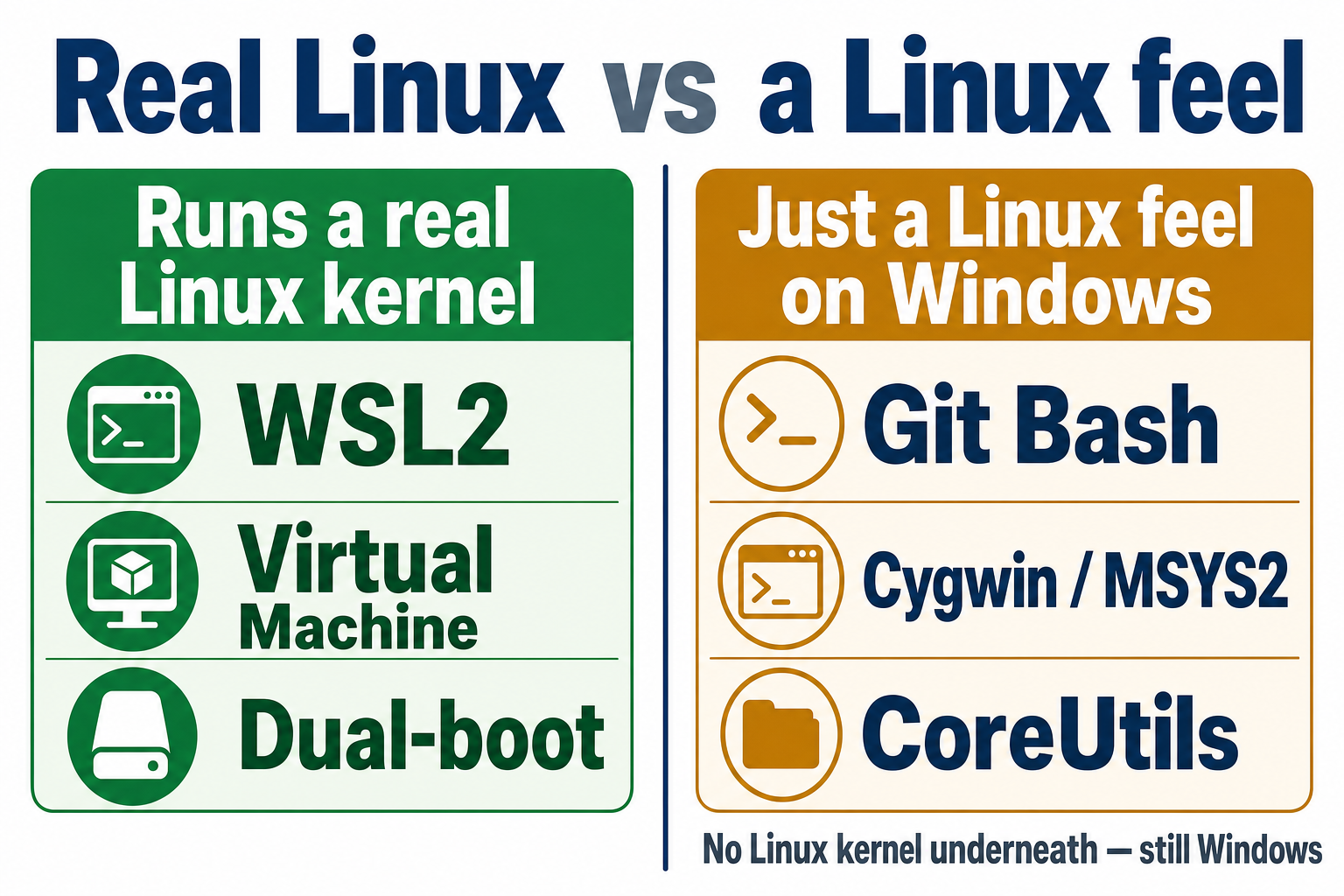
Git Bash, Cygwin, and MSYS2 are not Linux. There's no Linux kernel involved. They give you a Bash shell and a set of Unix commands running on top of Windows, via a POSIX-compatibility layer: Cygwin's own documentation describes its cygwin1.dll as providing "substantial POSIX API functionality," and MSYS2 is built on a modified version of Cygwin. When you run a command in Git Bash, you're still on Windows underneath, with Windows' process and networking behaviour.
That makes them genuinely handy for a narrow purpose: familiar commands like ls, grep, ssh, and git on Windows, and writing quick Bash scripts without spinning anything up. If you just want your muscle memory to work in a Windows terminal, they deliver.
For actual pentesting, though, they're the wrong tool and it's not close. No kernel means no systemd daemons, no real iptables, no raw sockets, no packet capture, and no path to the GPU or wireless hardware your tools need. Use them for lightweight Windows-side scripting. Don't mistake them for a lab.
Option 6 of 6
Microsoft CoreUtils: native Unix commands (the brand-new option)
This one is new — Microsoft announced it at Build in June 2026 — and it's already being widely misunderstood, so it's worth getting right. CoreUtils for Windows is a Microsoft-maintained package of native Windows binaries of the classic Unix utilities: cat, grep, find, xargs, sort, and dozens more. It's built in Rust on the uutils project (the same cross-platform coreutils reimplementation that's the default in some Linux distros, such as Ubuntu 25.10), and you install it with one line:
winget install Microsoft.Coreutils
Here's the part that trips people up: this is not a way to run Linux, and it isn't trying to be. It's not WSL, it's not a VM, it's not even Cygwin. There's no Linux environment underneath — just genuinely native Windows executables that happen to be the Unix commands you already know, so your Windows shell feels less alien and your existing text-processing pipelines carry over. That's the whole pitch, and it's a good one for what it is.
For lab work, it's a convenience, not a platform — but there are three gotchas you'll hit within about five minutes, so let me save you the head-scratching:
PowerShell's aliases win before CoreUtils does. PowerShell already aliases ls, cat, cp, rm, sort to its own cmdlets, and those aliases resolve before Windows ever looks at your PATH. So installing CoreUtils does not magically give you GNU ls in PowerShell — you'll still hit Get-ChildItem unless you remove the alias or call the executable directly (ls.exe). This surprises nearly everyone.
chmod and chown aren't there. They were deliberately left out, not faked, because Windows uses ACLs rather than Unix permission bits. Sensible call, but don't expect POSIX permissions to work.
Text pipelines can misbehave in PowerShell. find, xargs, and the rest do ship in the package — but PowerShell pipes .NET objects between commands, not raw byte streams the way cmd and Bash do, so classic text-in/text-out pipelines can behave oddly under PowerShell. Run them in cmd, or expect to fiddle, if a pipeline doesn't do what you'd expect.
It's a nice bit of ergonomics for anyone who lives in a Windows terminal and misses their Unix commands. Just file it under "Windows quality-of-life", not "Linux lab".
Keep your lab safe (before you run anything hostile)
One thing worth saying plainly, because a security lab is where you'll eventually handle things that bite back. If you're going to examine real malware or genuinely hostile samples, isolation isn't a nice-to-have — it's the whole point of using a VM in the first place, and you have to actually turn it on:
Contain the network first. For anything hostile, use a disposable VM with networking set to Internal-only or disabled entirely — not NAT or Bridged — and turn off shared folders and shared clipboard. Plain "Host-Only" can still reach your host, so don't rely on it alone.
Never detonate real malware in WSL2 or a plain Docker container. Both share state with Windows (WSL2 exposes \\wsl$ and /mnt/c; Docker shares the host kernel), so they're the wrong place for anything you don't trust. That's VM-with-a-clean-snapshot territory.
Only attack what you're allowed to attack. Keep scanning and exploitation to systems you own — your own VMs — or to authorised practice ranges like TryHackMe and Hack The Box. Pointing tools at anything else without permission is a criminal offence, not a lab exercise.
Which should you choose? (Nathan's recommended stack)
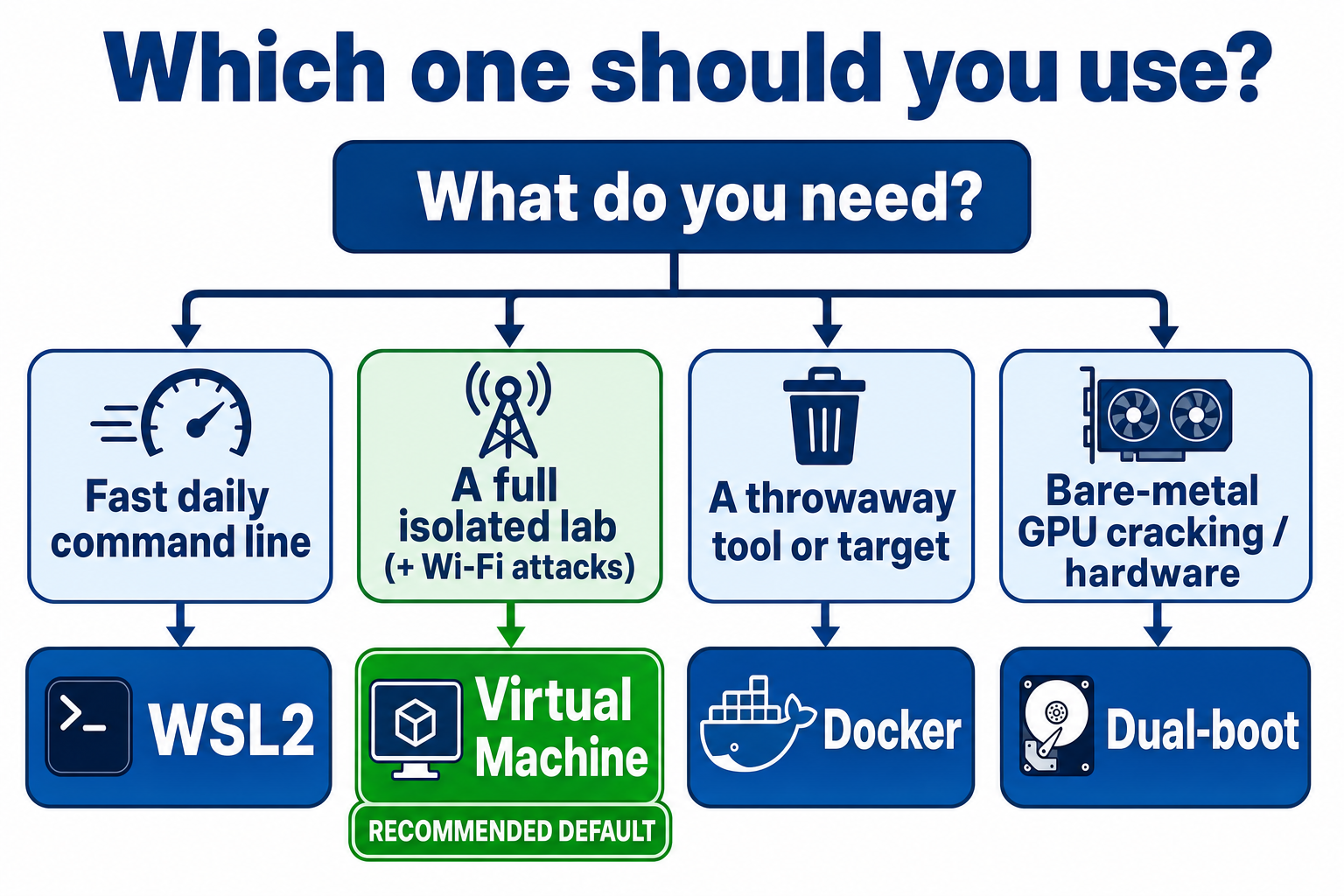
So after all six, what do you actually install? You don't pick one — you layer them, and here's the stack I'd hand a student today:
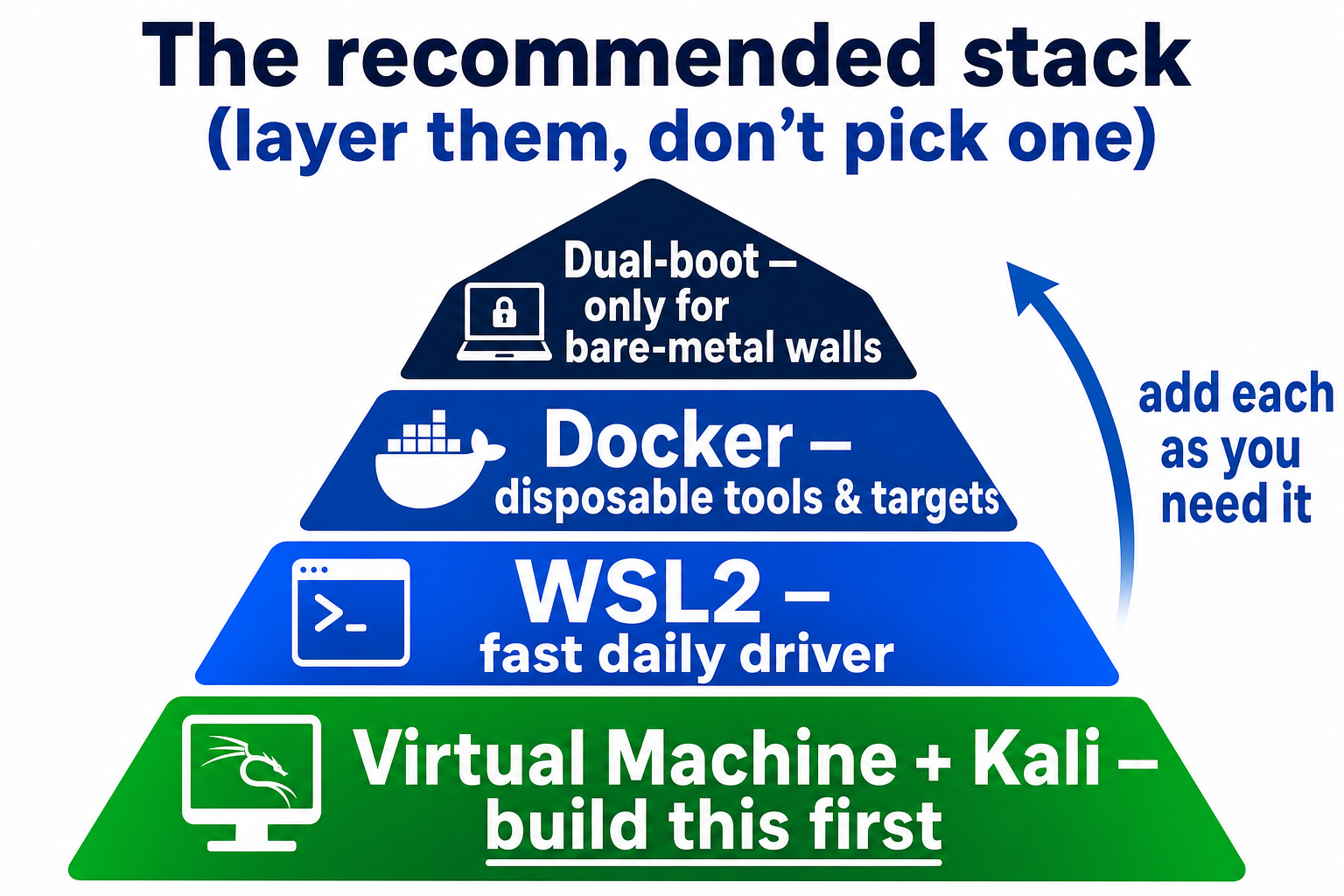
A VM (free VMware Workstation Pro or VirtualBox) with a prebuilt Kali image — build this first. It's your real lab, and snapshots plus isolation are the whole reason. Add a USB Wi-Fi adapter when you're ready for wireless work. If you only set up one thing, set up this.
WSL2 with Kali as your fast daily CLI driver, sitting right next to Windows for quick scans, scripting, and terminal work without booting the VM. (Mind the coexistence warning above when you run both.)
Docker when you want a disposable target or a single tool — vulnerable apps, CTF services, throwaway scanners.
Dual-boot only once you actually hit a bare-metal wall: serious GPU-accelerated cracking or low-level hardware analysis. Not before.
Git Bash / CoreUtils as Windows-side conveniences for scripting and familiar commands — useful, but never mistake either for a Linux environment.
Which one should you reach for, in one glance:
A note on hardware
A comfortable lab where you run an attacker box and a target VM at the same time wants around 16GB of RAM and 40GB+ of free disk. If your laptop's tighter than that — 8GB, low disk — don't fight it: use a cloud Linux VPS, or the browser-based attack boxes on TryHackMe and Hack The Box, which need no local install and sidestep the hypervisor conflict entirely.
Start at the top. A VM with Kali plus WSL2 covers the overwhelming majority of what you'll do learning cybersecurity, and you can add the rest the day you genuinely need it.
Frequently Asked Questions
Is WSL2 as good as a virtual machine for cybersecurity?
For everyday command-line work, scripting, and exploiting practice boxes, yes — WSL2 is faster and lighter. But it doesn't get direct hardware access, so for isolated multi-machine labs, snapshots, and Wi-Fi attacks (a VM can do those with a passed-through USB adapter), a VM is the better choice. Most people end up running both.
Can I run Kali Linux on Windows?
Yes, several ways. The two easiest are WSL2 (wsl --install -d kali-linux, then sudo apt install -y kali-linux-large for the tools, optionally with the Win-KeX desktop) for a fast CLI environment, or importing a prebuilt Kali VM image into VirtualBox or free VMware Workstation Pro for a full isolated lab.
Is Microsoft CoreUtils a replacement for WSL?
No. CoreUtils gives you native Windows versions of Unix commands like cat and grep, but it is not a Linux environment — no Linux kernel, no distro, no chmod/chown. It makes your Windows shell feel more Unix-like; it doesn't run Linux. For that you still want WSL2 or a VM.
Do I need to dual-boot Linux to learn pentesting?
Almost certainly not. A VM with Kali plus WSL2 handles the vast majority of learning — including wireless attacks, if you pass a USB Wi-Fi adapter through to the VM. Reserve dual-boot for when you specifically need bare-metal GPU-accelerated cracking or low-level hardware access, where a virtual layer genuinely gets in the way.
Is VMware Workstation still free?
Yes. Broadcom made VMware Workstation Pro free for everyone, including commercial use, in November 2024, and it remains free. There's no license key — you just need a free Broadcom account to download it. It's a strong, free alternative to VirtualBox.
Can I run Linux from a USB stick instead?
Yes — a live/bootable USB with persistence runs Kali straight off the stick without touching your Windows install, and because it runs on the bare metal it gets native hardware access (useful on a low-spec machine). The trade-off is no snapshots and slower storage, so it's more of a portable or rescue option than a daily lab.
About the Author

Nathan House, Founder & CEO of StationX
Nathan House has 30 years of hands-on cybersecurity experience and is Cambridge-educated, holding CISSP, CISA, CISM, OSCP, CEH, and SABSA. He founded StationX in 1999 — one of the UK’s first cybersecurity companies — and has secured £71 billion in UK mobile banking transactions and the London 2012 Olympics, advising clients including Microsoft, Cisco, BP, Vodafone, and VISA. He authored the world’s most popular cybersecurity course — a #1 Udemy bestseller taken by over 500,000 students — and was named Cyber Security Educator of the Year 2020, AI Security Educator of the Year, and a UK Top 25 Security Influencer 2025. A DEF CON speaker and featured expert on CNN, Fox News, NBC, and the BBC, Nathan leads StationX’s training of more than half a million students worldwide.