Best WiFi Adapters for Kali Linux (Nov 2026 Update)
Buying the wrong WiFi adapter for Kali Linux is the most common mistake people make when they start learning wireless security. You follow a tutorial, buy what it recommends, plug it in, and find it won't do monitor mode — because the tutorial is four years old and the manufacturer quietly changed the chipset inside the same product name.
There's a second problem, and most guides still get it wrong: they tell you to install realtek-rtl88xxau-dkms. On a current Kali that step is unnecessary — Realtek support moved into the kernel itself.
This Kali Linux WiFi adapter list covers six that genuinely work, each verified against the chipset and driver rather than a vendor page — plus the one command that proves packet injection works. Let's start with whether you need an external adapter at all, because for a lot of people the answer is no.
StationX is a participant in the Amazon Services LLC Associates Program. If you buy through the links on this page, we may earn a commission at no extra cost to you.
TL;DR — if you've only got 30 seconds
Best overall: Alfa AWUS036ACH — RTL8812AU, dual-band, long range, no driver install needed.
Best budget: Alfa AWUS036ACS — around $30, same capability, less range.
Most discreet: Alfa AWUS036ACHM — MT7610U, single small antenna.
WiFi 6E: Alfa AWUS036AXML or the cheaper Panda PAU0F — needs kernel 6.19.8+.
The big change: Realtek drivers are in the kernel now. Skip the DKMS step older guides tell you to run.

for Kali Linux Nov 2026
Every pick verified by chipset and in-kernel driver. Tap any adapter for the full verdict.
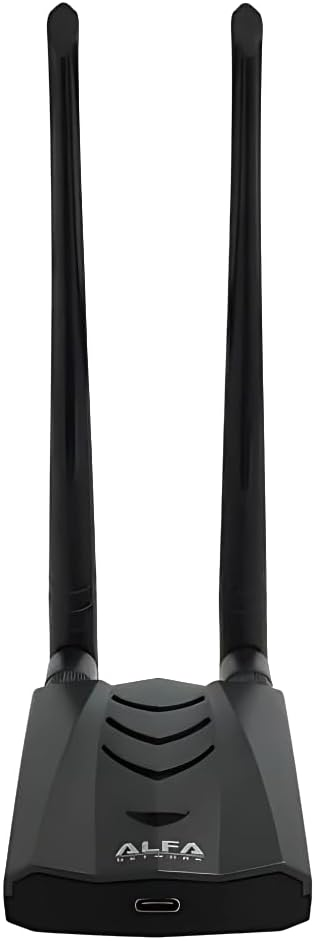
Long range, nothing to install. The adapter most course material assumes you have.
Read the full verdict →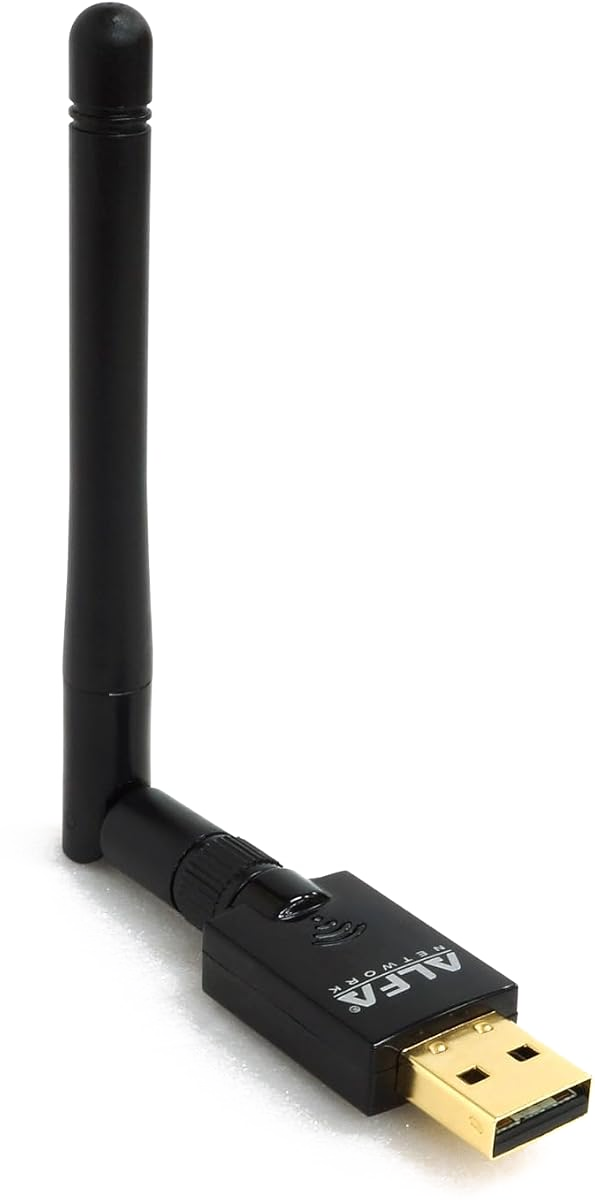
Around $30. Same capability as the ACH with less range.
Read the full verdict →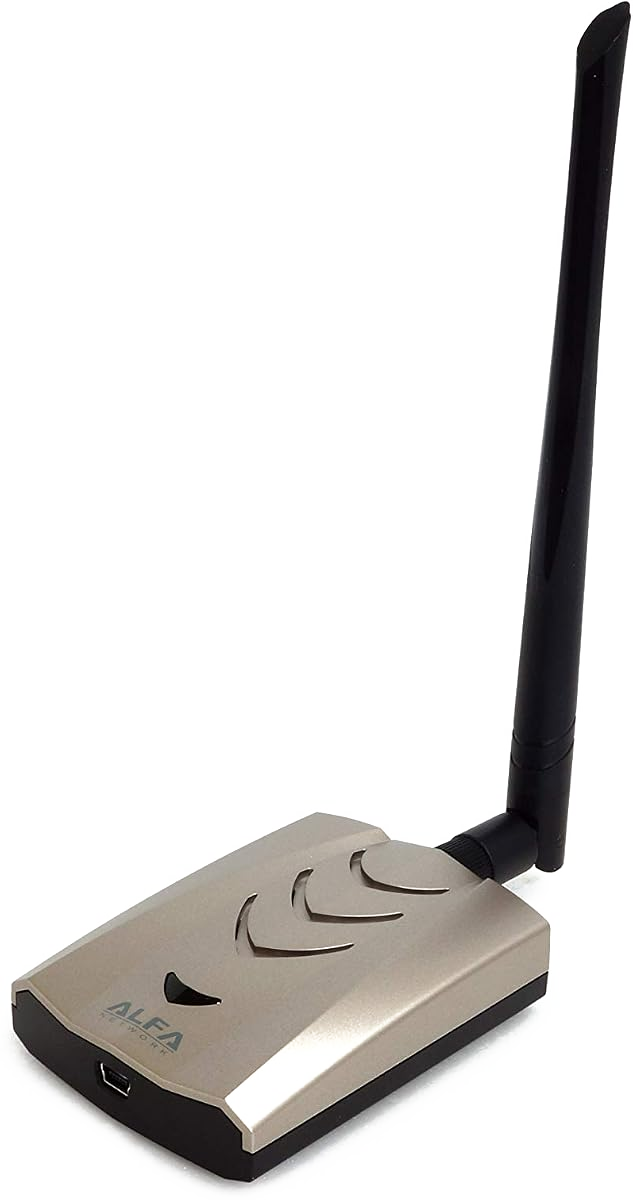
Discreet on a client site. Mature mt76 driver.
Read the full verdict →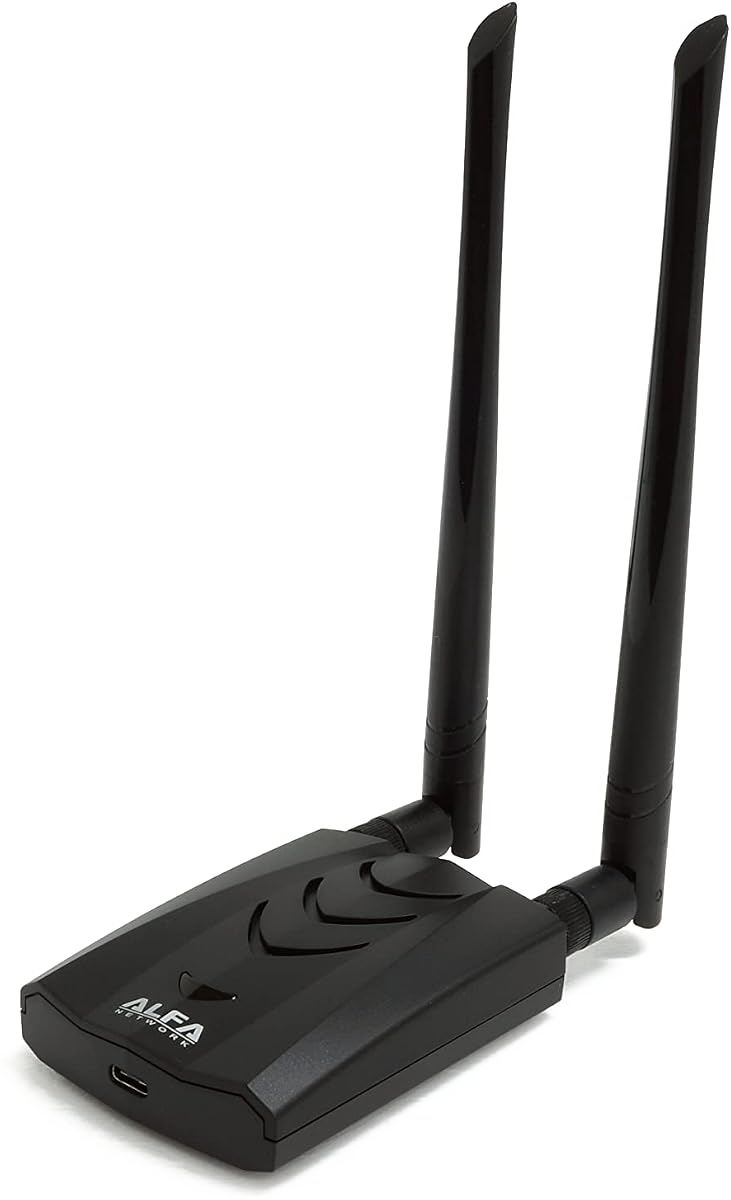
Adds the 6GHz band. Needs kernel 6.19.8+.
Read the full verdict →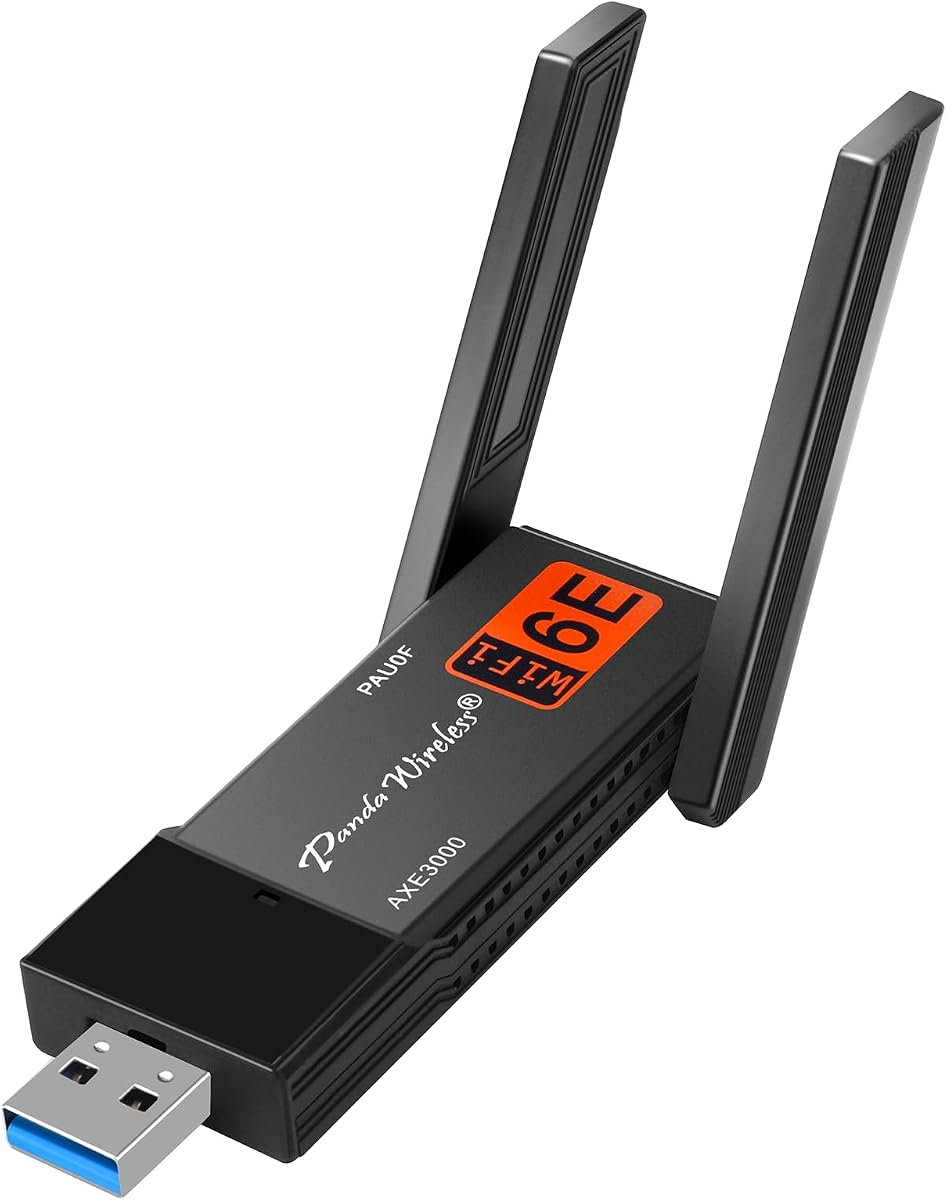
Tri-band for less. Same chipset, thinner build.
Read the full verdict →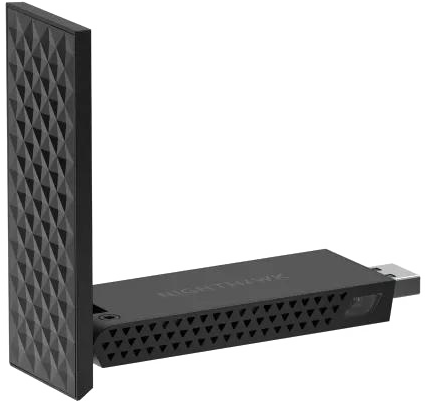
Passed every monitor-mode test, including active monitor mode.
Read the full verdict →Do You Actually Need an External Adapter?
Honestly? Probably not, and I'd rather say that up front than sell you hardware you don't need.
If you're learning general penetration testing, the WiFi card already in your laptop is fine. Web application testing, privilege escalation, network enumeration, working through boxes on a lab platform: none of that work touches wireless.
You need an external adapter for one specific situation: when you're attacking or auditing a wireless network itself. That means capturing a WPA handshake, running a deauthentication attack, setting up a rogue access point, or working through a wireless module in a course. The reason is that almost no built-in laptop WiFi card supports monitor mode and packet injection, and there's usually nothing you can do about it — it's a limitation of the chipset and its driver, not a setting you can switch on.
There's also a practical reason even people with a capable built-in card buy one: if you run Kali in a virtual machine, which most people do, passing a USB adapter through to the VM is far simpler than trying to give the guest control of the host's internal wireless card.
So if wireless is on your roadmap, read on. If it isn't yet, bookmark this and spend the money on lab time instead.

Monitor Mode and Packet Injection, Explained
These two capabilities are the entire reason a special adapter exists, so it's worth being precise about what they do.
Monitor mode lets the adapter listen to all wireless traffic in range, not just traffic addressed to your machine. A normal adapter behaves like someone in a conversation, only hearing what's said to them. In monitor mode it's more like standing in the room hearing every conversation at once. This is how you capture handshakes and survey what's actually broadcasting nearby.
Packet injection lets the adapter transmit frames it composes itself, rather than only replying in a normal conversation. This is what makes an active test possible — a deauthentication frame that forces a device to reconnect, so you can capture the handshake it produces. Listening alone is often not enough.
Both depend on the chipset and its Linux driver, not on price or brand. An expensive adapter with the wrong chipset is useless for this; a $30 one with the right chipset works perfectly. That's why every recommendation below leads with the chipset rather than the model name — the chipset is the thing that actually determines whether it works.
Why Not the $15 TP-Link TL-WN722N?
If you've searched for this before, you've seen the TP-Link TL-WN722N recommended everywhere. It's cheap, it's famous, and it's in hundreds of tutorials. So why isn't it on this list?
Because the one those tutorials were written about isn't the one you can buy. The original version 1 used an Atheros AR9271 chipset and was genuinely excellent for this. TP-Link then changed the internals while keeping the model name. Kali's own documentation is blunt about it, listing the v1 and noting that "v2 & v3 have unsupported chipsets". The adapter shipping today is a v2 or v3, and it doesn't appear on the current community-maintained recommended list at all.
The wider point applies to most sub-$20 adapters: they're 2.4GHz only. That means you cannot see or test any network running on 5GHz, and you're limited to narrower channels. A large share of modern home and office WiFi is on 5GHz or 6GHz, so a 2.4GHz-only adapter leaves you blind to much of what you'd actually want to audit.
Spending $30 instead of $15 roughly doubles what you can see. That's the cheapest upgrade in this entire guide.
What Changed in 2026: Drivers Moved Into the Kernel
This is the part most guides haven't caught up with, and it makes life considerably easier.
For years, using a Realtek-based adapter such as the AWUS036ACH meant installing an out-of-kernel driver — the realtek-rtl88xxau-dkms package, or compiling something from GitHub. Those drivers worked, more or less, but they broke on kernel upgrades and were never great at monitor mode.
That changed. Support for these Realtek USB chipsets is now provided by the in-kernel rtw88 driver family, which arrived across the Linux 6.13–6.16 series depending on the chipset. Kali 2026.2 packages kernel 6.19, so the Realtek adapters recommended here work without installing the old DKMS driver at all. MediaTek adapters have had good in-kernel support via the mt76 driver for considerably longer.
Why does it matter beyond saving you a step? Because the in-kernel drivers are written to the standard Linux wireless framework (mac80211), they behave predictably with tools like aircrack-ng and they don't break every time you update. If you find a guide telling you to install DKMS packages for these adapters, it was written for an older Kali.
One caveat for WiFi 6E buyers
MediaTek MT7921AU-based adapters had a monitor-mode regression in kernels 6.17 and 6.18 that could crash the system during virtual-interface work such as evil-twin setups. The fix was merged upstream in kernel 6.19.8. Kali 2026.2 packages 6.19, so check yours with uname -r and run a full upgrade if you're behind. We haven't seen another guide cover this.
The Best USB WiFi Adapters for Kali Linux
Six adapters, each chosen for the chipset and driver rather than the marketing. Every one is a USB WiFi adapter for Kali Linux that does monitor mode and packet injection, and every one has been checked against its chipset rather than a vendor claim. If you only want a WiFi adapter compatible with Kali out of the box, start with the first two.
Alfa AWUS036ACH
The AWUS036ACH is the adapter I'd hand someone starting wireless work. Two 5dBi antennas give it genuinely long range, it covers both bands, and the RTL8812AU chipset is now supported in-kernel so there's nothing to install. It's also the adapter most course material assumes you have, which removes a lot of friction when you're following along.
The honest downside: it's big. Two upright antennas on a laptop in a coffee shop attract attention, and it's wide enough to block an adjacent USB port. It also draws more power than a small adapter.
On Kali 2026.2: Yes — in-kernel rtw88 driver, nothing to install.
Alfa AWUS036ACS
Around $30 for dual-band monitor mode and injection is the best value here. The RTL8811AU is a single-stream chipset, so it's slower than the ACH with less range, but for learning the tooling none of that matters. It's small enough to leave plugged in.
The honest downside: the short antenna means noticeably less range. Trying to reach a network at the far end of a building, you'll feel the difference against the ACH.
On Kali 2026.2: Yes — in-kernel rtw88 driver.
Alfa AWUS036ACHM
Sometimes you don't want to look like you're carrying surveillance equipment. The ACHM uses the MediaTek MT7610U, which has mature in-kernel support and handles monitor mode particularly cleanly, in a body with one modest antenna.
The honest downside: it's AC600 class, so throughput tops out around 433Mbps on 5GHz. Fine for capture and injection, but don't buy it expecting fast general-purpose WiFi.
On Kali 2026.2: Yes — in-kernel mt76 driver.
Alfa AWUS036AXML
The AXML is the WiFi 6E option worth having. The MT7921AUN chipset adds the 6GHz band, which matters increasingly as newer routers move there — an adapter that can't see 6GHz can't audit anything on it.
The honest downside: the kernel requirement is real. On 6.17 or 6.18 you can hit the monitor-mode regression described above. You also can't adjust transmit power the way you can on some Realtek adapters.
On Kali 2026.2: Works on kernel 6.19.8 or later — check with uname -r.
Panda PAU0F
Same MT7921AU chipset as the Alfa, noticeably cheaper. If you want 6GHz coverage without paying Alfa prices, this is the sensible buy — and Panda's listing explicitly names Kali among supported systems.
The honest downside: build quality and antenna performance don't match the Alfa, and Panda's documentation is thinner if you hit a problem.
On Kali 2026.2: Works on kernel 6.19.8 or later.
Netgear Nighthawk A9000
The only WiFi 7 adapter here, and the one to buy for the longest useful life. The MT7925U passed the full monitor-mode test suite in community testing — injection, capture, and active monitor mode, which several older adapters fail.
The honest downside: it's the most expensive option, it's marketed as a Windows accessory so Linux support is community-verified rather than vendor-promised, and WiFi 7 targets are still rare.
On Kali 2026.2: Yes — in-kernel mt7925u driver.
Kali Linux Compatible WiFi Adapters: The Full List
All six are Kali Linux compatible WiFi adapters in the sense that matters — the chipset has a working in-kernel driver. Here are four common situations, and what I'd choose in each.
You're learning and want one adapter that just works. Buy the AWUS036ACH. It's the default for a reason, and most course material assumes it.
You're on a tight budget. The AWUS036ACS at around $30. You lose range, not capability.
You need to be discreet on a client site. The AWUS036ACHM. One small antenna, professional appearance, excellent driver.
You want it to still be useful in five years. The AWUS036AXML for 6GHz, or the Netgear A9000 if you want WiFi 7. Check your kernel first.
Aircrack-ng Compatible WiFi Adapters
Aircrack-ng is the suite most wireless work runs through, so "does it work with aircrack-ng?" is really the same question as "does the chipset have a proper in-kernel driver?" Here's how the recommended adapters map to their drivers.
| Adapter | Chipset | Driver | Bands |
|---|---|---|---|
| Alfa AWUS036ACH | RTL8812AU | rtw88 | 2.4 / 5GHz |
| Alfa AWUS036ACS | RTL8811AU | rtw88 | 2.4 / 5GHz |
| Alfa AWUS036ACHM | MT7610U | mt76 | 2.4 / 5GHz |
| Alfa AWUS036AXML | MT7921AUN | mt76 (mt7921u) | 2.4 / 5 / 6GHz |
| Panda PAU0F | MT7921AU | mt76 (mt7921u) | 2.4 / 5 / 6GHz |
| Netgear A9000 | MT7925U | mt76 (mt7925u) | 2.4 / 5 / 6GHz |
The rule worth remembering: if the chipset uses an in-kernel rtw88, mt76 or ath9k_htc driver, aircrack-ng will work with it. If a listing won't tell you the chipset, treat that as a warning rather than an oversight.
That's also the honest answer to "which WiFi adapter with monitor mode should I get?" — any of the six above. The differences between them are range, size, price and how future-proof they are, not whether the core capability works.
Setting Up a WiFi Adapter for Kali Linux Monitor Mode
Plug the adapter in and confirm Kali sees it, along with the driver it's using:
iw dev
lsusb
If you bought one of the WiFi 6E adapters, check your kernel version before anything else. You want 6.19.8 or later:
uname -r
If you're behind, update and reboot:
sudo apt update && sudo apt full-upgrade -y
sudo reboot
Now stop the processes that interfere with monitor mode, and switch the adapter over:
sudo airmon-ng check kill
sudo airmon-ng start wlan0
That usually creates an interface called wlan0mon. Finally, prove that injection actually works rather than assuming it. This is the step people skip:
sudo aireplay-ng --test wlan0mon
You're looking for Injection is working! in the output. If you see that, the adapter is doing everything this guide promised. If you don't, the troubleshooting section below covers the usual causes.
Troubleshooting: Kali Not Recognising Your Adapter
Four things account for nearly every "my adapter doesn't work" problem.
You're in a VM and the adapter is attached to the host. This is the most common cause by a distance. The USB device has to be passed through to the guest. In VirtualBox, install the Extension Pack and add a USB filter for the adapter; in VMware, connect it to the guest from the removable-devices menu. If lsusb inside Kali doesn't list it, it never reached the VM.
Not enough power. High-gain adapters draw real current. Through an unpowered hub or a low-power port they may enumerate and then drop under load. Plug directly into the machine, ideally a USB 3.0 port.
Your kernel is older than the driver. The Realtek in-kernel drivers arrived in the 6.13–6.16 series and the MediaTek WiFi 6E fix in 6.19.8. Check with uname -r and run a full upgrade — this resolves a surprising share of problems.
It's not the chipset you thought. Manufacturers change internals without changing the model name — exactly what happened to the TL-WN722N. Run lsusb and check the ID against what you expected before assuming the software is at fault.
Frequently Asked Questions
What is the best WiFi adapter for Kali Linux?
For most people the Alfa AWUS036ACH is the best all-round choice. It uses the Realtek RTL8812AU chipset, covers 2.4GHz and 5GHz, has excellent range, and since the rtw88 driver was merged into the Linux kernel it works on a current Kali install without compiling anything. If you want a smaller and cheaper option, the Alfa AWUS036ACS does the same job with less range for around $30.
Do I still need to install realtek-rtl88xxau-dkms drivers?
Not on a current Kali install. Support for the Realtek RTL8812AU, RTL8811AU and RTL8814AU chipsets moved into the mainline Linux kernel in the 6.13–6.16 series via the rtw88 driver family. Kali 2026.2 packages kernel 6.19, so those adapters work out of the box. Most older tutorials still tell you to install the DKMS package — that advice is out of date, and the old out-of-kernel Realtek drivers were never good at monitor mode anyway.
Which WiFi adapters support monitor mode and packet injection?
Any adapter whose chipset has a mac80211-compliant in-kernel Linux driver. In practice that means the Realtek RTL8812AU, RTL8811AU and RTL8814AU (rtw88 driver), the MediaTek MT7610U and MT7612U (mt76 driver), and the newer MediaTek MT7921AU and MT7925U for WiFi 6E and WiFi 7. Verify it yourself after buying with: sudo aireplay-ng --test wlan0mon
Does the cheap TP-Link TL-WN722N still work with Kali?
Only the original version 1, which is long discontinued. Kali's own documentation notes that versions 2 and 3 use unsupported chipsets, and the adapter doesn't appear on the current community-maintained recommended list at all. The one you'll find on Amazon today is almost certainly a v2 or v3, so it isn't the adapter the old tutorials were written for.
Do these adapters work with Kali running in a virtual machine?
Yes, and most people run Kali exactly that way. You pass the USB device through to the VM rather than connecting to WiFi from the host. In VirtualBox you need the Extension Pack for USB 3.0 support, then add a USB filter for the adapter. In VMware, connect the device to the guest from the removable-devices menu. The adapter must be attached to the guest, not the host, or Kali won't see it at all.
Is buying a WiFi adapter for monitor mode legal?
Buying and owning one is legal — it's a standard networking tool, and monitor mode is simply the ability to observe wireless traffic. What matters is what you do with it. Testing networks you own or have written permission to test is fine; attacking networks you don't have permission for is illegal in most countries regardless of the hardware you use.
What about WiFi 6E and WiFi 7 adapters?
They work, with one caveat worth knowing. MediaTek MT7921AU-based WiFi 6E adapters had a monitor-mode regression in Linux kernels 6.17 and 6.18 that could crash the system during virtual-interface work. The fix was merged upstream in kernel 6.19.8. Kali 2026.2 packages kernel 6.19, so check with uname -r and run a full upgrade if you're on anything earlier.
Final Thoughts
If you take one thing from this guide, make it this: buy for the chipset, not the model name. Product names get reused, internals get swapped, and the tutorial you're following may describe hardware that hasn't been sold for years. The chipset and its driver determine whether monitor mode and packet injection work — everything else is packaging.
For most people reading this, the Alfa AWUS036ACH is the right call. It works out of the box on a current Kali, it has the range to be useful, and it's what most course material assumes. Buy it, run aireplay-ng --test, and get on with learning the actual skills — which is the part that matters.
About the Author

Nathan House, Founder & CEO of StationX
Nathan House has 30 years of hands-on cybersecurity experience and is Cambridge-educated, holding CISSP, CISA, CISM, OSCP, CEH, and SABSA. He founded StationX in 1999 — one of the UK’s first cybersecurity companies — and has secured £71 billion in UK mobile banking transactions and the London 2012 Olympics, advising clients including Microsoft, Cisco, BP, Vodafone, and VISA. He authored the world’s most popular cybersecurity course — a #1 Udemy bestseller taken by over 500,000 students — and was named Cyber Security Educator of the Year 2020, AI Security Educator of the Year, and a UK Top 25 Security Influencer 2025. A DEF CON speaker and featured expert on CNN, Fox News, NBC, and the BBC, Nathan leads StationX’s training of more than half a million students worldwide.